MarkPane is a native Markdown viewer for local Mac files. It opens Markdown files, plain-text documents, or folders of related Markdown files, creates new Markdown files and folders, renders them in a clean reading surface, and keeps common review actions close at hand: folder browsing, file and folder creation, file and folder renaming, move-to-Trash deletion, linked Markdown tabs, search, source editing, task checkbox updates, local image access, diagram rendering, math rendering, typography controls, and printing.
Contents
1. Quick start
- Open MarkPane.
- Drop a Markdown file or folder into the viewer window, or choose
File > Open Markdown or Folder... (
Command-O). - To start a fresh document, click Create new Markdown in an empty viewer, choose a destination, and MarkPane opens the new file in the source editor.
- If you opened a folder, click a Markdown file to open it in the current tab, or Option-click to open it in a new tab. Use the folder actions menu or context menus to create Markdown files and folders, rename folder items, or move a selected file or folder to Trash.
- Read the rendered document. Use links, details sections, footnotes, task checkboxes, tables, diagrams, and math directly in the viewer.
- Press
Command-Fto search rendered content. - Press
Command-Eto open the source editor for the current file. Changes autosave back to the file. - Press
Command-Pto print from the active viewer or editor window. - Hover a rendered image, table, or Mermaid diagram and click Open in New Window to view it in a separate resizable window.
2. Interface at a glance
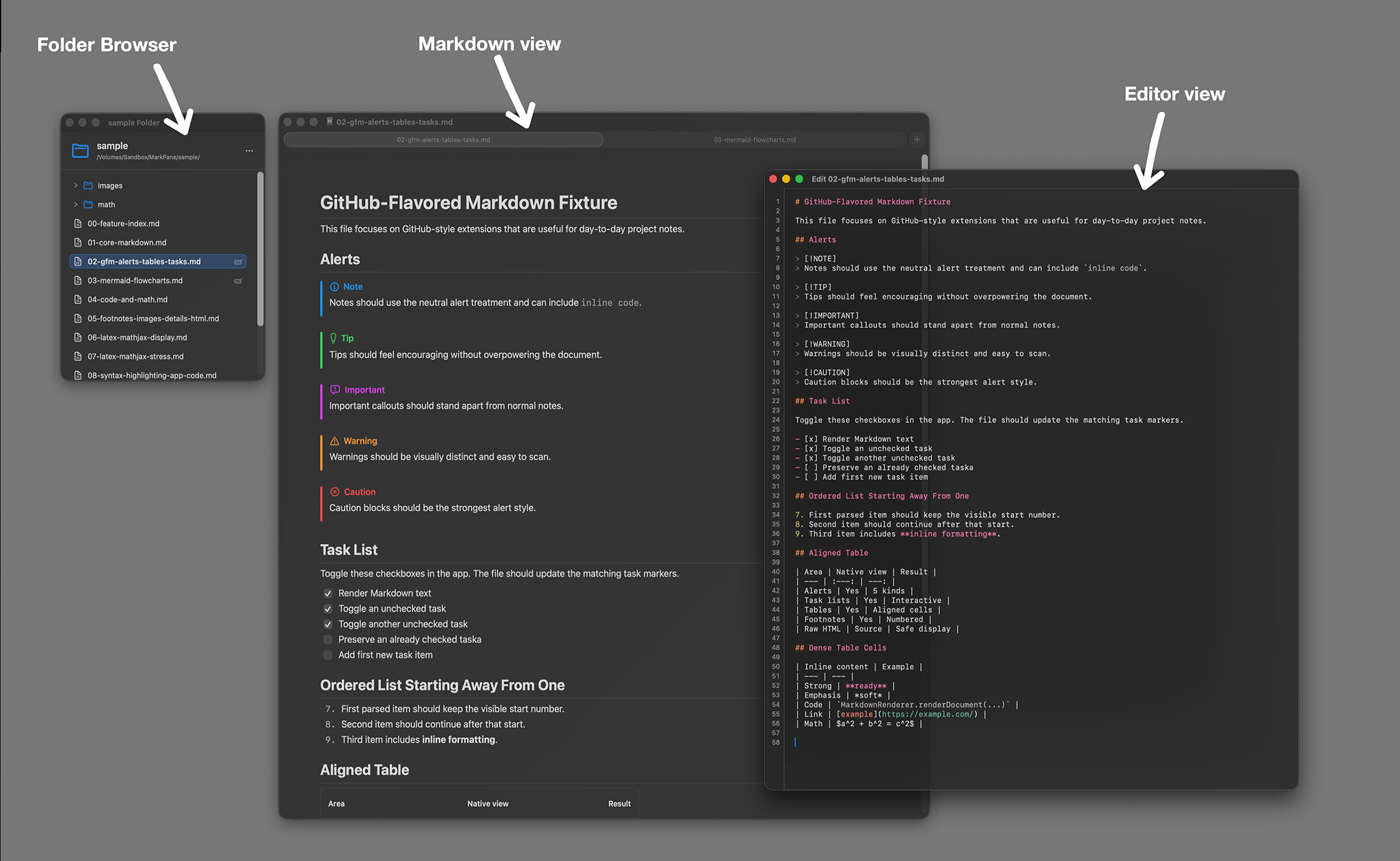
The screenshot above shows the core rendered Markdown layout with the main document surface and common review controls.
Viewer window
The viewer window shows the rendered document. When no file is open, the window displays a drop target for Markdown files and folders plus a button for creating a new Markdown file.
Folder browser
The folder browser opens in a separate window after you choose or drop a folder. It shows directories and supported Markdown files, highlights the frontmost file, marks files already open in tabs, keeps empty folders visible for organization, and provides folder actions for creating Markdown files and folders, renaming items, and moving selected files or folders to Trash.
Search bar
The search bar appears over the document when you choose Edit > Find in Markdown. It shows the current match count and next/previous controls.
Source editor
The source editor opens in a separate window for the current file. It is intended for quick corrections and updates while keeping the rendered view available. Pressing Return continues common Markdown structures such as bullet lists, ordered lists, task lists, and blockquotes, while Tab and Shift-Tab indent or outdent the selected lines.
3. Opening files and folders
MarkPane opens readable local text files, including:
.md.markdown.mdown.mkd.txt
You can open files in these ways:
- Drag and drop a file or folder into a viewer window.
- Choose File > Open Markdown or Folder... (
Command-O). - Open a supported file from Finder with MarkPane.
You can create a new Markdown file from an empty viewer by clicking Create new Markdown.
The save panel suggests Untitled.md or the next available numbered name, and MarkPane opens
the new empty file in the source editor after it is created.
When you choose a folder, MarkPane opens a folder browser instead of replacing the current document immediately.
If a file is not readable text, MarkPane shows an error instead of rendering it.
4. Folder browsing
Use folder browsing for project notes, documentation folders, and collections of related Markdown files. The folder browser keeps the chosen folder available while you move between documents.
- Click a Markdown file to open it in the current viewer tab.
- Option-click a Markdown file to open it in a new tab.
- Use the Folder Actions menu in the header to create a Markdown file or folder in the root folder.
- Right-click a folder and choose Create New Markdown to create a file inside that folder.
- Right-click a folder and choose Create New Folder to create a subfolder inside that folder.
- Right-click a file or folder and choose Rename to rename it inline. Press Return to commit or Escape to cancel.
- Right-click a file or folder and choose Delete to confirm and move it to the macOS Trash.
- The folder tree refreshes automatically after files change on disk.
- The current frontmost file is highlighted, and files already open in the tab group are marked.
- Folders and supported Markdown files are shown for navigation; other files may appear dimmed for context.
When you create Markdown from the folder browser, MarkPane inserts an empty file, starts inline rename,
and opens the new file in a tab with the source editor after you commit the name. When you create a
folder, MarkPane suggests Untitled Folder or the next available numbered name, starts
inline rename, and expands the parent folder so the new folder is immediately visible.
Hidden files and package contents are skipped in the folder tree. Empty folders are shown
and can be expanded, even before they contain Markdown files. Create, rename, and delete actions are
limited to writable items inside the folder access you granted; names cannot be empty or contain
/. Delete moves the selected item to Trash rather than permanently erasing it.
5. Windows and tabs
- New Window: choose File > New Window
(
Command-N) for an independent viewer window. - New Tab: choose File > New Tab
(
Command-T) to add a viewer tab to the current window group. - Linked Markdown files: click a local Markdown link in the rendered document to open the linked file in a MarkPane tab. If macOS requires permission for the linked file's folder, MarkPane asks you to choose that folder.
- Document restoration: MarkPane can remember the last opened document for returning windows using local macOS document bookmarks.
6. Rendered content
MarkPane renders Markdown with native Swift views. Supported content includes:
- Headings, paragraphs, emphasis, links, blockquotes, ordered lists, unordered lists, and nested lists.
- Tables, code blocks, inline code, images, footnotes, and details sections.
- Hard line breaks from Markdown lines that end with trailing spaces.
- GitHub-style alerts: note, tip, important, warning, and caution.
- Interactive task-list checkboxes.
- Mermaid fenced blocks for flowchart, state, sequence, class, ER, and XY chart diagrams.
- Display math with MathJaxSwift for
$$...$$,\[...\], and fencedmathblocks. - Rendered images, tables, and Mermaid diagrams can open in separate resizable windows from their hover control.
Raw HTML is not executed. Supported native equivalents such as
<details>are rendered directly, and other HTML blocks are shown as source.
7. Local images and links
Local images
If a Markdown file references images stored beside the document, macOS sandboxing may require folder permission. Use the inline Allow Local Images action and select the Markdown file's folder. MarkPane uses that permission to load images you chose to make available.
Links
Links to other local Markdown files open in MarkPane tabs where possible. If a linked Markdown file is
outside the folder access MarkPane already has, macOS may ask you to choose the linked file's folder.
Web links such as https:// URLs may open in your default browser.
8. Editing Markdown
- Open a Markdown file, or create a new Markdown file from the empty viewer or folder browser.
- Choose File > Edit Current Markdown (
Command-E). - Edit the source in the editor window.
- Use Return inside common Markdown lists and blockquotes to continue the current structure.
- Press Return on an empty list item to exit the list, or use Tab and Shift-Tab to indent and outdent the selected lines.
- MarkPane autosaves edits back to the file and updates the rendered document.
Markdown-aware editing supports bullets, ordered lists, task lists, blockquotes, and selected-line indentation. Inside fenced code blocks, Return keeps plain code editing behavior instead of adding Markdown list markers.
Edit Current Markdown is available only when the current viewer has a file-backed document open.
9. Task lists
Click a rendered task-list checkbox to update the matching source marker in the Markdown file. MarkPane
changes markers such as [ ] and [x] directly on disk.
If the file cannot be written or the checkbox cannot be matched to a Markdown task marker, MarkPane shows an error.
10. Find in Markdown
- Choose Edit > Find in Markdown (
Command-F). - Type a search term. Matches highlight in the rendered document.
- Use Find Next (
Command-G) and Find Previous (Shift-Command-G) to move between matches. - Press Escape or the close button to dismiss search.
Search works on rendered content, including headings, tables, code, math fallback text, details, and footnotes.
11. View controls
- Select Font: choose View > Select Font... to use a different rendered document font.
- Increase Font Size:
Command-+ - Decrease Font Size:
Command-- - Increase Line Height:
Shift-Command-+ - Decrease Line Height:
Shift-Command-- - Reset Typography: restore the default font, font size, and line height from the View menu.
- Window Transparency: choose a percentage from the View menu.
- Use Glass Document Surface: toggle the document surface style from the View menu
or use
Option-Command-G.
12. Printing
Choose File > Print... (Command-P) to print the rendered document from
the active viewer or editor window. MarkPane prepares the document for a printed page layout before
showing the standard macOS print panel.
13. Keyboard shortcuts
Choose Help > Quick Help (Shift-Command-/) inside MarkPane to open the
built-in shortcut reference.
| Action | Shortcut | Notes |
|---|---|---|
| New Window | Command-N |
Opens an independent viewer window |
| New Tab | Command-T |
Adds a viewer tab to the current window group |
| Open Markdown or Folder... | Command-O |
Opens a Markdown file, text file, or folder browser |
| Edit Current Markdown | Command-E |
Opens the source editor for the current file |
| Print... | Command-P |
Prints the rendered document |
| Find in Markdown | Command-F |
Searches rendered content |
| Find Next | Command-G |
Moves to the next rendered match |
| Find Previous | Shift-Command-G |
Moves to the previous rendered match |
| Increase Font Size | Command-+ |
Adjusts rendered document typography |
| Decrease Font Size | Command-- |
Adjusts rendered document typography |
| Increase Line Height | Shift-Command-+ |
Adjusts rendered document spacing |
| Decrease Line Height | Shift-Command-- |
Adjusts rendered document spacing |
| Use Glass Document Surface | Option-Command-G |
Toggles the document surface style |
| Quick Help | Shift-Command-/ |
Opens MarkPane's built-in help window |
14. Troubleshooting
File opens, but images are missing
Grant access to the Markdown file's folder using the inline Allow Local Images action.
Editing is unavailable
Open a file-backed Markdown document first. The editor is not shown for an empty viewer.
Creating a Markdown file fails
Choose a writable local folder and a supported extension such as .md,
.markdown, .mdown, .mkd, or .txt. MarkPane will not
overwrite an existing item with the same name.
Creating a folder fails
Create folders from the Folder Actions menu or a folder context menu inside a writable folder. MarkPane
suggests Untitled Folder and will not overwrite an existing item with the same name. If the
folder is read-only, outside the folder access you granted, or blocked by macOS permissions, move the
project to a writable local folder and try again.
Renaming a folder item fails
Rename from the Folder Access window context menu. The new name cannot be empty, contain
/, or match another file or folder in the same location. If the item is read-only, move it
to a writable local folder and try again.
Deleting a folder item fails
Delete from the Folder Access window context menu. MarkPane moves the selected file or folder to the macOS Trash after confirmation. If the item is read-only, outside the folder access you granted, or blocked by macOS permissions, move it to a writable local folder and try again.
Markdown list continuation does not appear in a code block
Inside fenced code blocks, Return keeps plain code editing behavior so code samples are not given Markdown list markers automatically.
A folder opens, but expected files are missing
MarkPane skips hidden files and package contents, and opens supported Markdown or text files. Empty folders remain visible and expandable, and the folder tree refreshes automatically after adding or renaming files on disk.
A linked Markdown file asks for folder access
Choose the folder that contains the linked file. MarkPane uses that macOS permission to open the linked Markdown document in a tab.
Mermaid or math fails to render
Check the fence label and syntax. Unsupported Mermaid diagram types or invalid TeX may be shown as fallback content.
Find shows no results
Find searches the rendered document. Try a word that appears in the visible rendered output, or check the source editor for raw Markdown syntax.
Last updated: 2026-05-14